





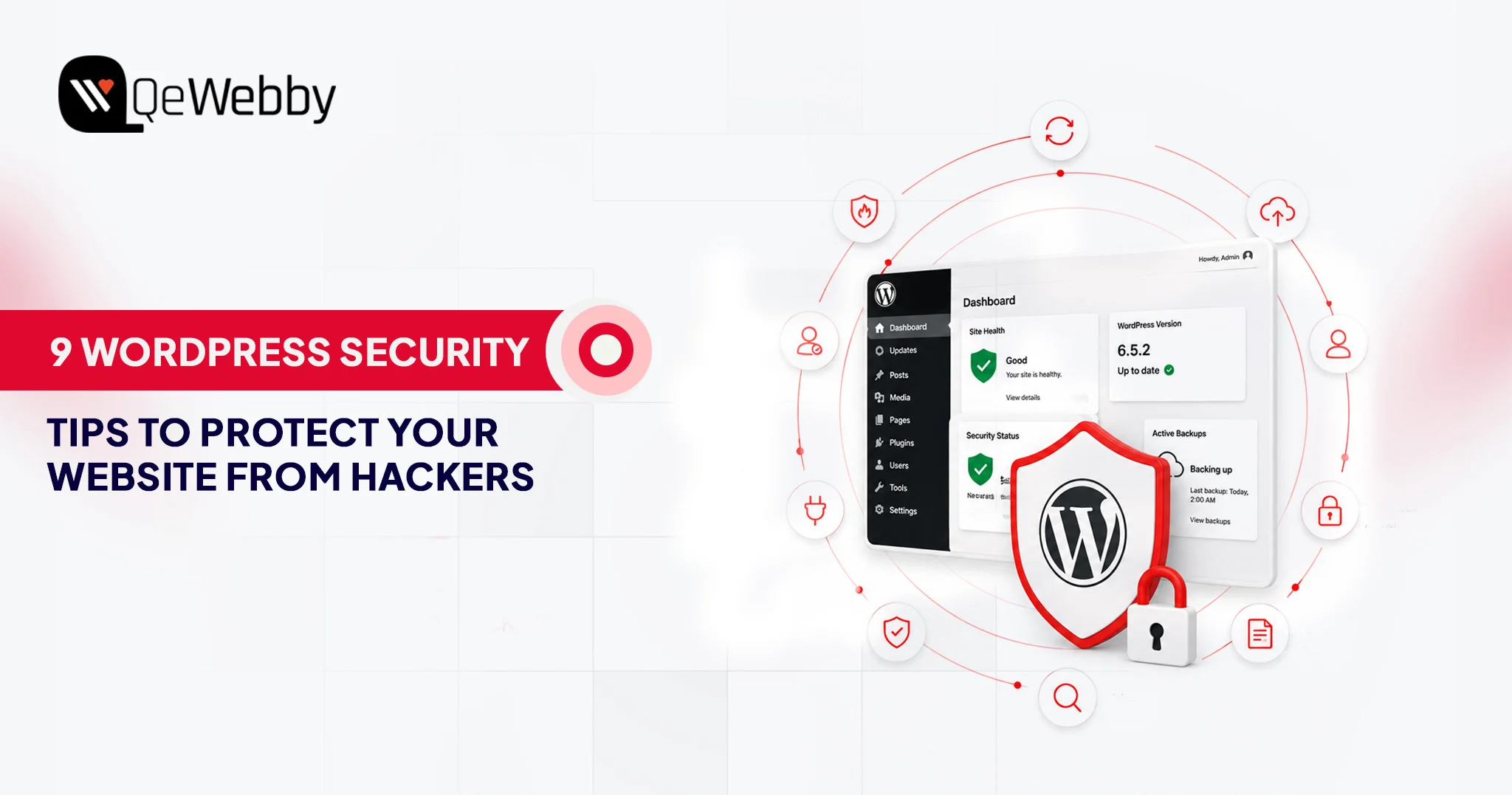





WordPress runs more than 43% of all websites on the internet. That dominance is what makes it the most targeted platform in the world.
Most site owners know security matters. Far fewer treat it as the ongoing, active discipline it actually needs to be. Attackers are not waiting for you to get around to it.
According to Patchstack’s State of WordPress Security 2025 report, 11,334 new vulnerabilities were identified in the WordPress ecosystem in 2025 alone. That is a 42% year-over-year jump. The median time between a vulnerability’s public disclosure and an attacker’s active exploitation is now just 5 hours.
This guide covers practical WordPress security tips that move the needle: regular updates, strong access controls, two-factor authentication, secure hosting, reliable backups, and a few hardening steps that most sites skip. By the end, you will have a clear WordPress security checklist you can act on today, not someday.
Why WordPress Security Is Critical?
WordPress’s dominance as a platform makes it the most targeted in the world, with new vulnerabilities primarily in plugins identified daily. Ignoring security can lead to persistent threats such as brute-force attacks and cross-site scripting (XSS), which often require no authentication to exploit. A breach is costly, resulting in lost search rankings, account suspensions, and high recovery fees, underscoring the necessity of proactive security measures.
The Platform’s Size Makes It a Permanent Target
WordPress does not get attacked because it is poorly built. It gets attacked because the math works out in the attacker’s favor. A single vulnerability in a plugin installed on 500,000 sites lets an automated scanner find and attempt to exploit it across all those sites within hours. That is a structural problem no individual site owner can solve at the platform level.
Ninety-one percent of vulnerabilities found in 2025 came from plugins rather than WordPress core itself, per Patchstack’s research. Core WordPress is actively maintained and patched quickly. The risk concentrates in the plugin ecosystem: vast, inconsistently maintained, and often abandoned by developers years before anyone notices.
Common Attack Types That Target WordPress Sites
The attack surface on a WordPress site is broader than most owners think. Brute-force login attempts are constant background noise on any public WordPress installation. SQL injection through vulnerable plugin forms still works reliably against unpatched sites.
Cross-site scripting (XSS) flaws in themes let attackers inject code that runs in your visitors’ browsers. And broken access-control vulnerabilities, which became the most-exploited class in 2025, let attackers perform admin-level actions with zero credentials.
43% of new WordPress vulnerabilities in 2025 required no authentication to exploit, according to Patchstack. An attacker does not need your password to use these vulnerabilities. They just need your site to be running an outdated plugin.
What Does a Breach Actually Cost?
A hacked site is not just a technical mess. Search engines blacklist compromised sites, wiping organic rankings that took months to build. Customer data exposure triggers regulatory consequences. Hosting providers suspend accounts when malware is detected. Rebuilding from a compromised state, without a working backup, regularly costs more in recovery time and contractor fees than a year of proper security maintenance would have.
Recovering lost rankings after a security incident can be a lengthy process, which is why security and WordPress SEO should be treated as complementary parts of a long-term website strategy.
Accenture’s State of Cybersecurity Resilience 2025 report found that only 1 in 10 organizations globally are adequately prepared to defend against current cyber threats. For small business site owners, that gap between confidence and actual readiness tends to be wider still.
Why Core WordPress Updates Are Non-Negotiable?
Regular updates are a fundamental security discipline, as every patch publicly announces a vulnerability that attackers immediately start exploiting. Core WordPress updates are non-negotiable, while plugin and theme updates require discipline and testing, ideally in a staging environment, to prevent compatibility issues while eliminating known vulnerabilities.
Every WordPress update that patches a security issue is, implicitly, also a public announcement of the vulnerability that was just fixed. The moment that announcement goes live, automated scanners start testing every site on the internet for the unpatched version. A site running an older WordPress release after a security patch is out is a visible, searchable target.
Updating WordPress core takes under two minutes through the dashboard. For sites where manual update management is not reliable, enabling automatic background updates for minor releases in wp-config.php is a straightforward hardening step. The line is:
define(‘WP_AUTO_UPDATE_CORE’, ‘minor’);
Plugin and Theme Update Discipline
Plugin updates require more judgment than core updates because they occasionally create compatibility issues. That said, leaving a plugin unpatched because you are worried about breaking something trades a certain risk for an uncertain one.
For businesses that do not have the time or technical resources to manage updates, backups, and monitoring internally, managed WordPress maintenance can help ensure security best practices are applied consistently.
A known vulnerability in an installed plugin is a guaranteed exposure. A compatibility issue from an update is a possibility you can test and roll back if needed.
The practical approach: maintain a staging environment to test updates before pushing to production. For agencies managing multiple client sites, this is standard practice. For individual owners, it is worth the setup time.
Use Strong Passwords and Manage User Roles Carefully
Weak passwords remain a reliable attack vector, not because attackers are especially sophisticated, but because so many sites still use them. Passwords for WordPress admin accounts should be at least 16 characters and include uppercase and lowercase letters, numbers, and symbols. Password managers like 1Password or Bitwarden generate and store these without requiring anyone to memorize them.
User role management is the piece most site owners skip. WordPress has five default roles: Administrator, Editor, Author, Contributor, and Subscriber. Every account on your site should have the minimum access level needed to do the job.
A copywriter who publishes blog posts does not need Administrator access. Giving it by default, for convenience, doubles your attack surface. If that account gets compromised, the role determines what an attacker can do with it.
Auditing your user list periodically takes about five minutes. Remove stale accounts. Downgrade roles that were set to Administrator without much thought. These are small actions that meaningfully reduce your exposure.
Implement Two-Factor Authentication (2FA)
Two-factor authentication is a login verification method that requires a second proof of identity beyond the password, typically a time-sensitive code from an authenticator app. Even if an attacker obtains a valid password through phishing or a leaked credential database, they cannot access the account without the second factor.
For WordPress, enabling 2FA on all Administrator and Editor accounts is one of the most efficient security changes available. Plugins like WP 2FA, Google Authenticator, or Wordfence’s built-in module handle this without custom development. Setting up a site with multiple admin users takes under half an hour.
One point that often gets missed: if your hosting provider offers 2FA at the hosting account level, enable it there too. A compromised hosting account bypasses WordPress entirely, granting direct file system access. The hosting layer needs to be as protected as the WordPress layer.
Install a Trusted Security Plugin and Configure It Properly
A WordPress security plugin is a monitoring and enforcement tool. It is not a passive, install-and-forget solution. Many site owners install one, see a green status dashboard, and assume they are covered. The plugin is only as useful as its configuration.
Wordfence Security, Sucuri Security, and iThemes Security Pro are three consistently solid options. Each provides a web application firewall (WAF), malware scanning, login attempt monitoring, and IP blocking.
Wordfence’s free tier is genuinely capable when configured correctly. The firewall needs to be in enforced mode, not learning mode, which it often defaults to after installation.
Regardless of which plugin you use, verify that the firewall is active in enforced mode, that malware scans run at least weekly, that login attempt limits are set, and that email alerts are active for high-severity events. A security plugin that generates no alerts and runs no scans is not protecting your site.
Use HTTPS and Choose Secure WordPress Hosting
Establishing a secure foundation for your site requires using HTTPS to encrypt data in transit and choosing a robust hosting environment. HTTPS is non-negotiable for security and search visibility. The choice of host determines the security floor, with managed WordPress hosting offering isolation and server-level protection that significantly reduces the risk inherent in shared hosting environments.
HTTPS Is the Baseline, Not an Advanced Feature
HTTPS encrypts data transmitted between your visitors’ browsers and your server. Without it, passwords, contact form submissions, and other data travel across the network as readable plain text. Search engines have treated HTTPS as a ranking signal since 2014. In 2025, a site running HTTP has both a security gap and a search visibility disadvantage.
Most reputable hosting providers include free SSL certificates through Let’s Encrypt. Installation is typically a single click in the hosting control panel. If your site still runs on HTTP, this is the first item to address.
Your Hosting Environment Sets the Security Floor
The quality of your hosting environment determines how much protection you can build on top of it. Shared hosting environments pool resources across thousands of accounts. A vulnerability in another tenant on the same server can, in some configurations, expose your files. That cross-contamination risk sits outside your control.
Managed WordPress hosting from providers like Kinsta, WP Engine, or SiteGround’s managed tier provides server-level firewalls, automatic malware scanning, PHP version management, and infrastructure isolation. The price premium over shared hosting is genuine. So is the security difference.
If your current hosting environment lacks modern security controls, migrating to a more secure infrastructure may be the safest long-term option. A structured WordPress migration ensures the transition happens without data loss or downtime.
Back Up Your Site Regularly and Test the Restoration Process
A backup is only valuable if it works when you need it. That point sounds obvious and gets ignored constantly. Many site owners discover that their backups were incomplete, pointing to an incorrect storage location, or simply broken, only when a breach makes restoration urgent.
The minimum for any WordPress security checklist: daily automated backups stored in at least two locations, one of which is off-site. Plugins like UpdraftPlus, BlogVault, or WP Time Machine handle scheduling and cloud storage integrations with services like Dropbox, Google Drive, or Amazon S3. Backup frequency should match the frequency with which your content changes.
Test it. Once a quarter, restore a recent backup to a staging environment and confirm the site loads, forms work, and no content is missing. That restoration test is the only way to know the process functions. Without it, you have a backup file that may or may not be usable when you actually need it.
Disable File Editing in the WordPress Dashboard
WordPress ships with a built-in code editor accessible through Appearance > Theme Editor and Plugins > Plugin Editor. It exists for convenience. It also creates a significant risk.
If an attacker gains access to any Administrator account, the file editor gives them direct access to your site’s PHP code through the dashboard. They can inject malware, plant backdoors, and modify core functionality without touching the server directly. Disabling the editor removes this escalation path entirely.
One line in wp-config.php does it: define(‘DISALLOW_FILE_EDIT’, true);
This does not affect any front-end functionality. Legitimate developers can still update files through FTP or server-side file management. The dashboard editor is the only thing removed, and it should not be used in production environments anyway.
Following secure development practices is equally important when making theme or plugin customizations. Experienced WordPress development services help ensure new functionality is implemented without introducing unnecessary security risks.
This is one of the most underused items on any WordPress security checklist. It takes thirty seconds and eliminates a meaningful category of post-breach damage.
WordPress Security Checklist: Quick Reference
- Keep WordPress core updated
- Update plugins and themes monthly
- Use 16+ character passwords
- Enable 2FA
- Install a security plugin
- Enable HTTPS
- Use managed hosting
- Run daily backups
- Disable file editing
- Remove unused plugins
- Limit login attempts
- Test backup restoration quarterly
Building a WordPress Security Checklist That Holds Over Time
A one-time hardening pass is not a security strategy. WordPress security problems compound when attention lapses: plugins get installed and forgotten, user accounts accumulate, backup schedules break silently, and hosting environments drift. Maintenance has to be ongoing; otherwise, it does not hold.
A working WordPress security checklist for ongoing maintenance looks like this: monthly review of user accounts and roles, monthly verification that all plugins and themes are up to date, quarterly backup restoration tests, quarterly review of security plugin logs for unusual activity, and annual review of the hosting environment and SSL certificate status.
For agencies managing client sites, this checklist should be included in a service agreement. For individual owners, a recurring calendar reminder is enough. The discipline matters more than the tool you use to track it.
Many agencies incorporate these security processes into their white-label WordPress development workflows, helping clients maintain secure, well-managed websites without expanding internal technical teams.
The Sites That Get Hacked Are Not Unlucky. They Are Unprepared.
The WordPress security tips in this guide are not advanced. None of them requires deep technical knowledge. What they require is consistency: keeping software current, managing access with intention, maintaining tested backups, and using the right tools configured properly.
Most breached sites in 2025 were not under-resourced. They were under-prioritized. Security was something to get to later, and later arrived at the wrong moment.
If you manage your own WordPress site, the WordPress security checklist above gives you a concrete place to start. If you manage sites for clients, these practices are the standard they are paying you to uphold.
And if you want professional WordPress security services that treat this as an ongoing discipline rather than a one-time task, QeWebby’s WordPress team is built to do exactly that.