










Most business owners don’t land on the wrong WordPress theme because they have bad taste. They pick by scrolling demos, not by checking what’s under the hood. And the hood is exactly what breaks six months later.
WordPress.org alone hosts more than 14,000 free themes, and once you count the premium marketplaces, the number rockets past six figures. That much choice is paralyzing. Worse, almost every theme conversation gets stuck on how things look. But the best theme isn’t a design pick at all. It’s an infrastructure decision, and it touches speed, crawlability, and whether your plugins play nice together.
Choosing the wrong WordPress theme doesn’t just affect how your website looks. It influences page speed, SEO, mobile usability, plugin compatibility, maintenance costs, and even how easily your team can update content. A good theme becomes the foundation for everything that follows.
This guide walks through what to check before you install anything: a pre-purchase checklist, an honest free-versus-premium breakdown, the strongest options available right now, and the one mistake nearly every owner makes the moment the theme goes live.
Your Theme Isn’t a Design Choice. It’s the Foundation Everything Else Sits On
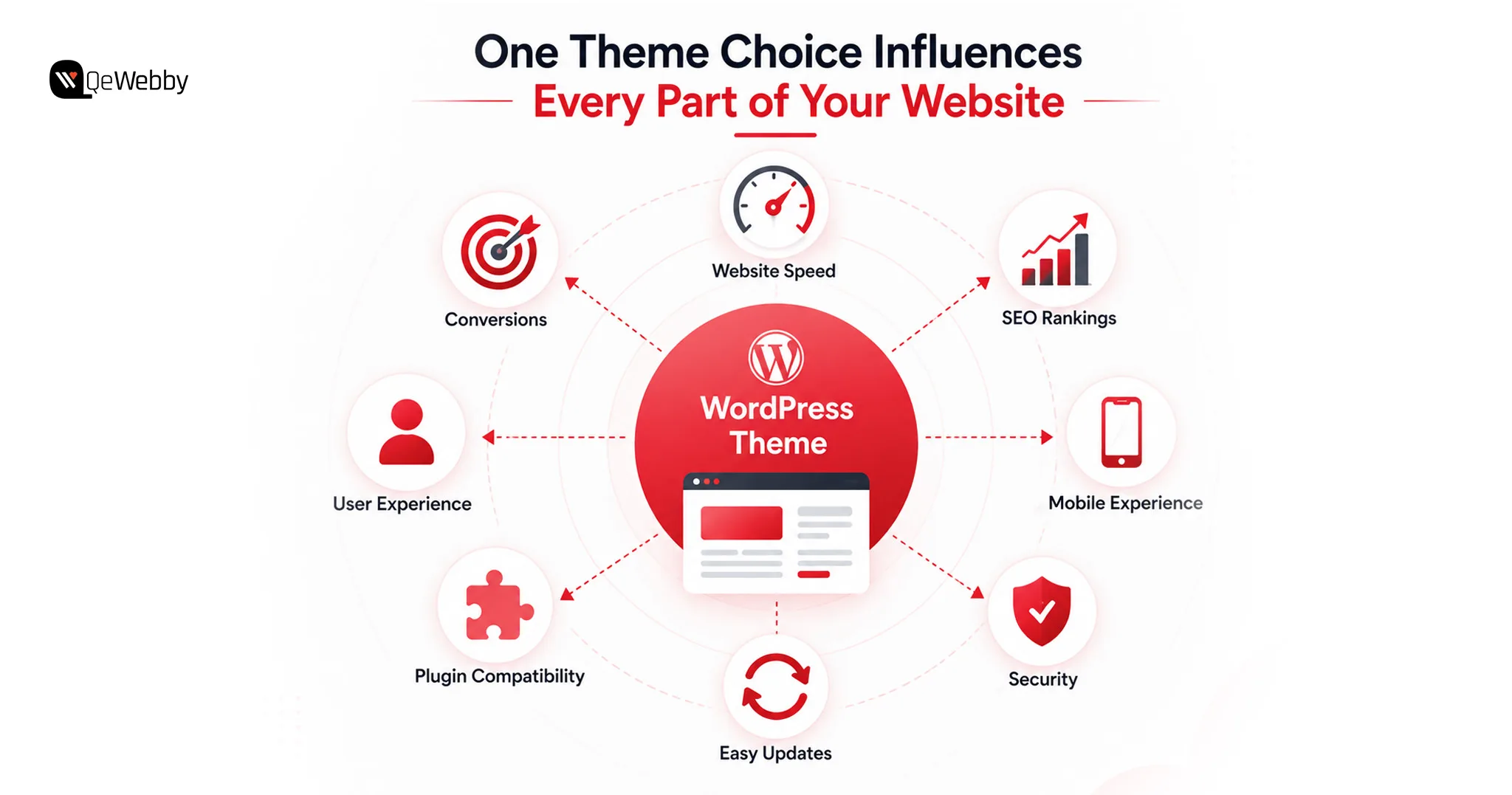
Your WordPress theme isn’t a design decision. It’s a technical foundation. You set it on day one, before a single word of content or a single plugin ever touches the site.
Most people judge a theme by scrolling the demo and asking, does it look good? That’s the wrong question. The theme decides how fast every page loads, how the browser paints it, and how long a visitor stares at nothing before something finally shows up. Looks should be the last thing you weigh, not the first.
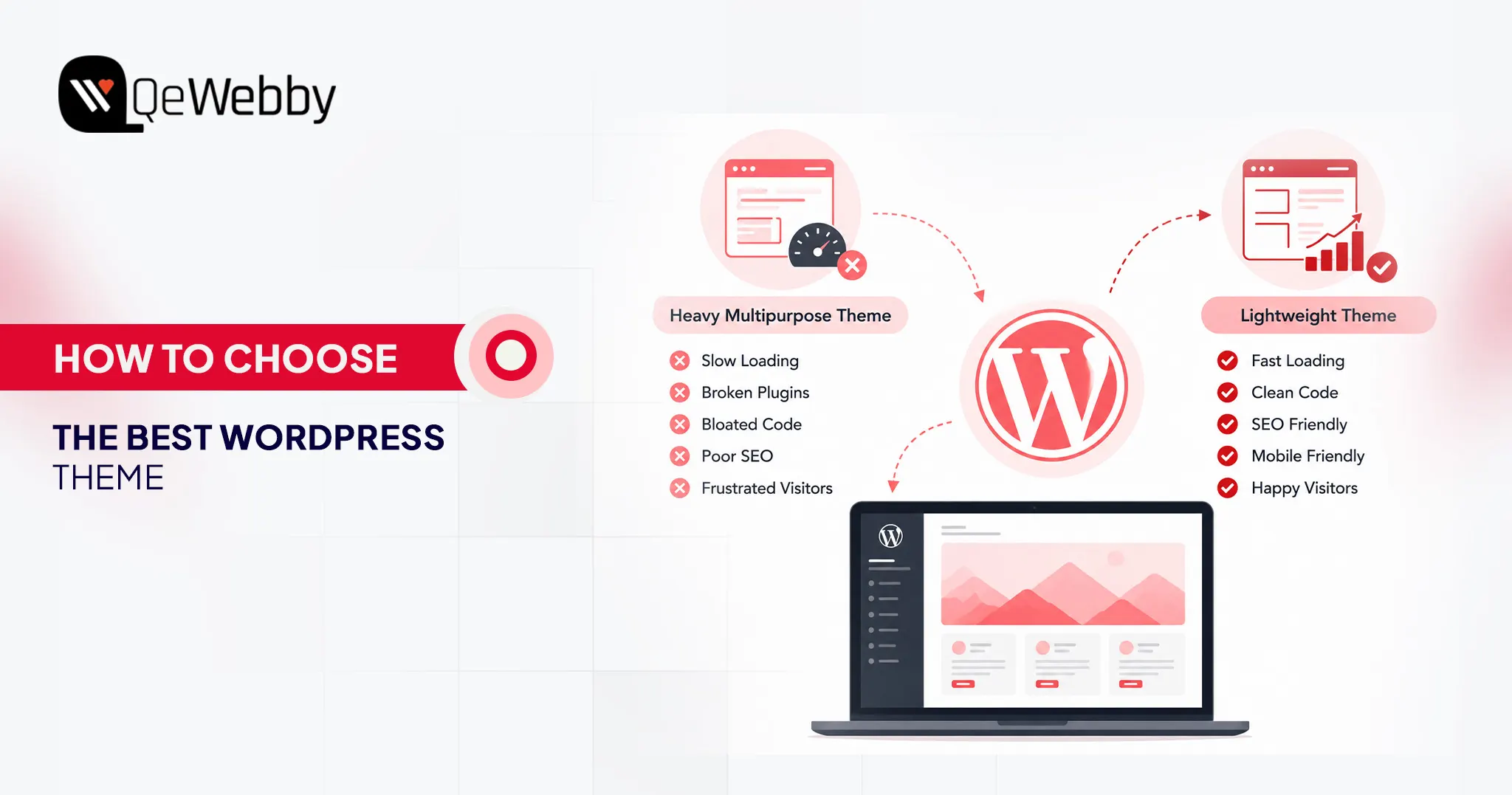
Here’s where it all goes sideways. Those flashy “multipurpose” themes promise you everything at once. Sliders. Animation libraries. A dozen design modules. Page builders stacked on page builders. Sounds generous. It’s the opposite of generous.
Every one of those features ships as extra CSS and JavaScript that your browser has to download and parse, whether you ever use it or not. And most of it you never will. The browser has no way of knowing that. So it loads the whole payload anyway, chokes, and your load time picks up the tab.
Once you’re stuck on a bloated theme, you can’t optimize your way back out. Install a caching plugin. Lazy-load your images. Minify the scripts. Buy a faster host. None of it repairs the foundation. A slow, poorly coded theme stays slow, and you end up patching a structural problem with surface-level tools.
So flip the priority. Fast sites start with lightweight themes built on clean, minimal code. The good ones use modular architecture, which is a fancy way of saying they load a resource only on the page that actually needs it. Nothing ships by default. Nothing loads “just in case.”
Before You Browse a Single Theme, Answer Three Questions
Here’s how each question maps to the technical calls that decide whether your site ends up fast or slow.
1. What Is This Site Actually For?
The site’s core job doesn’t just shape the layout. It dictates your whole hosting and caching strategy, and those two calls matter more than the theme itself.
Service and content-first sites are the easy case. They serve mostly static pages to anonymous visitors, so a lightweight theme plus edge caching, something like Cloudflare APO, can deliver those pages almost instantly anywhere on earth while barely touching your server.
WooCommerce and membership sites are a whole different animal. Everyone checks whether a theme looks good with WooCommerce, and that’s the part that matters least. These sites run on dynamic, personalized content: shopping carts, user profiles, account pages. That content skips standard page caching entirely. You simply can’t cache a cart.
So you push the caching down a level. Server-side object caching with Redis is what soaks up the flood of complex database queries these setups throw off. Skip it, and the database turns into your bottleneck no matter how clean the theme underneath is.
2. Who Manages The Site Day-To-Day?
The manager’s technical comfort decides whether you build on a page builder or on native WordPress tools. That one fork has huge consequences for speed.
Non-technical owners drift toward Elementor and WPBakery for an obvious reason. They’re easy. Drag, drop, done. But a page builder isn’t a feature. It’s an entire framework bolted on top of WordPress, and it injects heavy, render-blocking CSS and JavaScript into every page you publish. The convenience is real. So is the tax.
Want that usability without paying the tax?
Skip the heavy builders and lean on the native Gutenberg block editor instead. Pair Gutenberg with a performance-first theme, GeneratePress, Astra, Neve, or Kadence, and you can build genuinely complex layouts at file sizes that often land well under 50KB. Same result on screen. A fraction of the weight underneath it.
3. What Plugins Does The Business Actually Need?
Map your plugin stack before you commit to a theme, because quality beats quantity every single time, and it isn’t close. One badly coded plugin will drag your site down harder than a dozen well-built ones running side by side.
While you’re mapping, cut the resource-heavy gimmicks. Image sliders and carousels are the worst offenders. They pull in multiple heavy JavaScript files and oversized images, wreck your Largest Contentful Paint scores, and trigger layout shifts, all while posting some of the lowest engagement numbers in web design. You’re paying a steep performance price for something almost nobody clicks.
Defining your exact needs upfront, contact forms, SEO, booking, whatever the business truly runs on, does one more thing for you. It stops you from stacking overlapping plugins that fight each other, bloat your database, and multiply your HTTP requests. Fewer moving parts. Fewer things waiting to break.
Before choosing plugins, it’s also worth reviewing the essential WordPress features every business website should include so your theme supports the functionality your website will actually need from day one.
The pattern across all three questions is the same. Decide what you need before you choose what you build on. Not after.
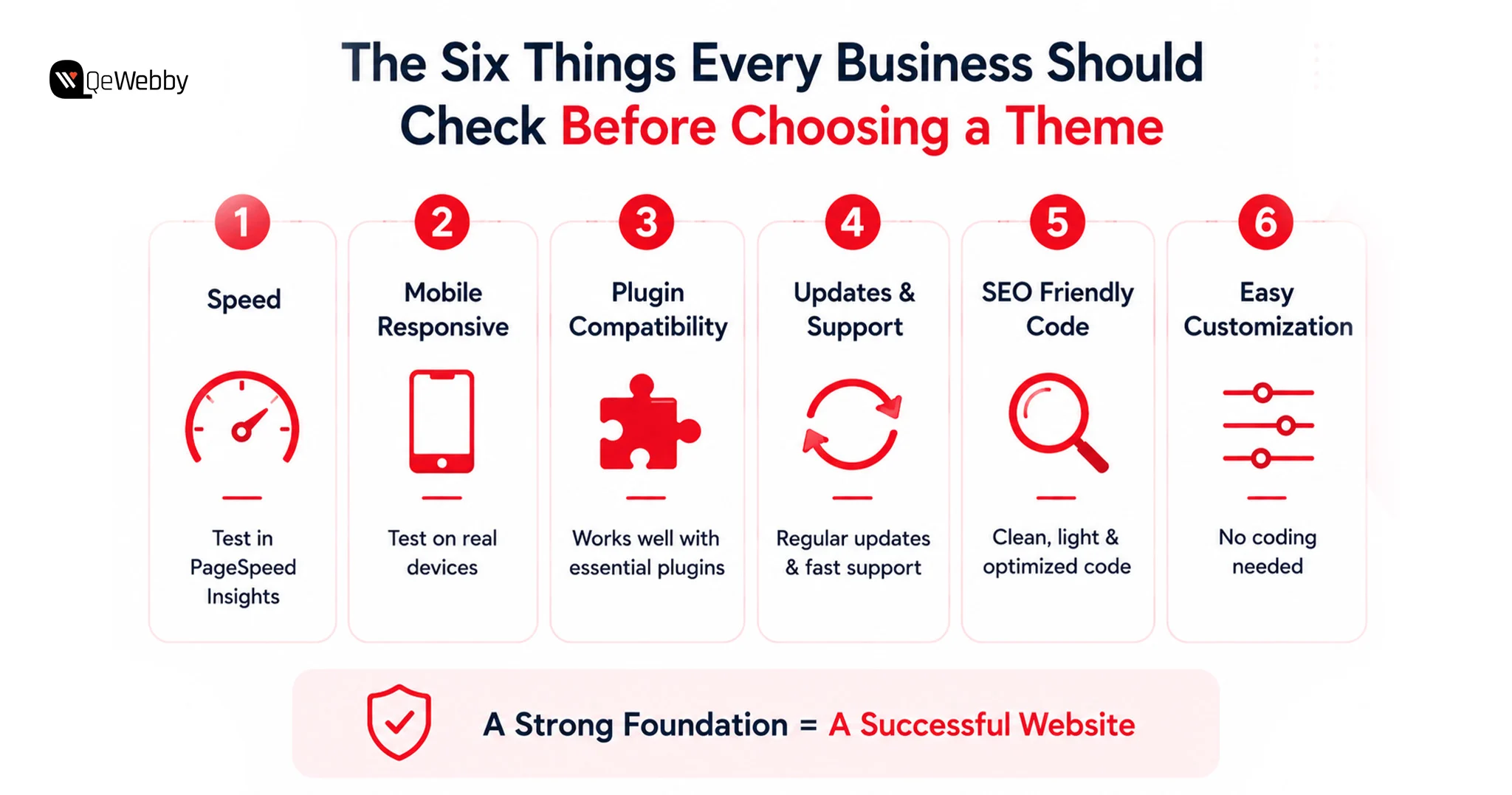
The Six Checkpoints That Separate a Theme That Lasts From One You’ll Replace by Q3
These six checkpoints do the one thing most theme checklists never manage. They connect what you’re checking to why it decides the outcome.
Each one maps straight onto the technical reality of a fast site, from Core Web Vitals down to whether the thing still scales two years from now.
Here’s how each checkpoint translates into the architecture underneath a site that actually performs.
1. Speed: Test The Demo Before You Buy
Run the demo through Google PageSpeed Insights before you spend a dollar. Not optional. The theme sets your absolute performance ceiling, and here’s the part people miss: if it’s already bloated in its clean, empty state, it only gets worse from there.
All that render-blocking CSS and JavaScript is baked in from the start. Add real content, real images, real plugins, and the numbers slide further down. Look for themes built for speed and sold as “lightweight,” usually under 1MB.
Astra, GeneratePress, Neve, and Kadence all clear that bar. They run on modular architecture, and a well-configured page can sometimes load with under 50KB of resources.
Even the fastest theme benefits from ongoing optimization. Our WordPress speed optimization service helps improve Core Web Vitals, reduce load times, and maximize website performance after launch.
2. Mobile Responsiveness Isn’t Optional
Test on a real phone. Not the browser’s mobile preview, an actual device, because that’s where themes quietly come apart. Phones have weaker CPUs and slower networks, so a theme that flies on your desktop can flunk Google’s Interaction to Next Paint metric on mobile with no warning at all. The usual culprit is JavaScript.
When the menus, animations, or formatting all lean on heavy scripts, every tap and scroll comes with a lag. Mobile visitors feel it before they can even name what’s wrong.
3. Match The Theme To Your Builder
Pairing the theme with the right builder avoids the obvious technical conflicts, and you’re right to check for it. But the faster move is to skip the heavy page builders altogether whenever you can. A builder isn’t a plugin. It’s a second framework stacked on top of WordPress, and it drags the whole site down with it.
The native Gutenberg block editor is cleaner and quicker, full stop. If you genuinely need Elementor, at least pair it with a stripped-down, blank-canvas theme like Hello Elementor or Astra, so the theme isn’t wrestling the builder for the same resources.
4. Updates And Support Response Time
An abandoned theme isn’t just a broken-features problem. It’s a security hole and a performance anchor at the same time. Themes the developer walked away from stop keeping pace with new PHP versions, and that traps you.
To keep the old theme breathing, you end up running an old, unsupported PHP version, which forces your server to process every request the slow way.
That’s a free speed upgrade you’re tossing in the bin, because modern PHP handles two to three times the requests per second. You’re leaving real performance on the table just to protect code nobody maintains anymore.
Keeping your theme updated is only one part of maintaining a healthy website. Following a comprehensive WordPress security checklist helps protect your site against outdated plugins, malware, weak login security, and other common vulnerabilities.
5. SEO-Friendly Code Structure
Clean code decides whether the browser can paint your page fast or has to crawl through it. Watch for themes that load external scripts, tracking pixels, and web fonts on every single page, used or not. Each one is another HTTP request, and each request blocks the first render.
Stack enough of them, and you’ve gutted your Time to First Byte and your Largest Contentful Paint, the exact scores that both search engines and visitors notice. The tell is simple: a theme that loads everything everywhere, just in case.
6. Customization Without Developer Intervention
A friendly customizer matters if you’re not technical. No argument there. But watch how the theme buys you that flexibility. Too many pay for their “easy customization” with visual gimmicks, built-in sliders, carousels, and animated hero modules, and those come at a real cost. They demand multiple large images and heavy JavaScript, wreck your load times, and cause the jarring layout shifts that tank your Cumulative Layout Shift score.
All of that, for features with some of the lowest engagement numbers on the web. Pick a theme that’s genuinely easy to edit but leans on clean, static hero images instead of interactive modules that look impressive and do nothing.
Free vs. Premium: The Comparison Most Guides Won’t Give You Straight
Most guides simply compare free and premium themes feature by feature. The better question is when each option actually makes sense for your business.
A free theme is a smart and sensible option for a straightforward 5-page brochure site, a webpage that is still learning, and also a business introducing a concept prior to investing real money. Official WordPress.org themes are pre-reviewed for quality and security before they enter the official WordPress.org directory. For now, the best free options are Astra Free, GeneratePress Free, Kadence Free, and Blocksy Free.
The moment reliable support, frequent updates, and design quality begin to turn a profit (most of the time for business sites and eCommerce stores) is among the reasons that Premium is expensive.
Generally, the hours of time you save will cost around $50 to $100. Premium themes also offer more secure shipment by using teams that practice standard shipping practices. This can slow down free themes and leave their support to the community forums.
Discover the best WordPress Business Themes that are currently used.
- Astra: It is the all-rounder, with over 2 million active users. Elementor, Divi, and Gutenberg are all fast, lightweight, and clean. The free version is pretty solid on its own, and Astra Pro further provides a sophisticated header/footer builder and more in-depth WooCommerce support.
- GeneratePress: The theme that has always been one of the fastest builders out there due to its minimal design. Core Web Vitals affect the page rank of the website, particularly in developer and corporate websites with lots of content.
- Kadence: Natively built forthe WordPress block editor, which means it provides a fast, flexible editing experience with no separate page builder to clutter the mix. Out of the box, a solid integration of WooCommerce. It’s the perfect match for anyone who wants to stick with native WordPress solutions in the long term.
- Avada: It is one of the world’s highest-selling premium themes, with its own Fusion Builder and hundreds of pre-built designs. As a part of the purchase price, lifetime updates and dedicated support are provided.
Why Your Site Never Looks Like the Demo, and Nobody Tells You Why
A businessman sets up a theme, gets its pages published and then wonders, “What’s the point if it looks nothing like the thing that sold me?” Despite being one of the most frequent grips in the entire WordPress community, it is almost never tackled in a head-on fashion by any theme guide.
The demo sites feature staged content to demonstrate the possibilities of a theme. As soon as it’s installed, a real site replaces that staging, and it can be a painful experience until you are able to tweak your menus, medi,a and pages just so they look right. Premium stock photography is used to create demo content by professional designers, and most businesses cannot manage to get that polish without any assistance.
Eliminating the gap isn’t difficult. It’s just deliberate. Import the demo content before you start to import your own. Themes with good quality are normally one-click import. Replace all the sample pictures with actual photos; there’s nothing like a good quality, free Unsplash photo or real photo over a shoddy phone photo.
The typography is the most obvious and easily replicated visual element, so follow the demo’s font combinations as closely as possible. Limit your layouts to a basic design. Attempting to duplicate a complex demo without design experience will necessarily tend to make things harder rather than easier.
Many businesses discover that installing the right theme is only the first step. If you want your finished website to match the quality of the demo while reflecting your own brand, our WordPress website design service for small businesses can help with professional layouts, typography, imagery, and customization.
Expert’s Take: Select the theme with the minimalism demo, which fits the business, not the most gorgeous one. A well-designed, simple theme is better than a complicated, poorly designed theme, and that’s always true.

Common Mistakes When Choosing a WordPress Theme
Most businesses don’t regret choosing WordPress. They regret choosing the wrong theme.
The mistake usually isn’t obvious on launch day. It appears months later when the website becomes difficult to update, loads slowly, conflicts with new plugins, or no longer reflects how the business has grown.
1. Choosing a Theme Based Only on the Demo
The homepage demo is designed to sell the theme, not represent what your website will look like after installation.
Professional demos use premium photography, carefully written copy, custom graphics, and hours of design work. Installing the same theme won’t automatically recreate that experience.
Instead of asking, “Does this demo look impressive?” ask:
- Does this layout support my business goals?
- Can I realistically recreate it?
- Will it still look good with my own content?
A simple, well-designed theme customized properly almost always performs better than a complicated demo that’s impossible to replicate.
2. Ignoring Website Speed
Many business owners fall in love with themes packed with animations, sliders, videos, and visual effects.
Unfortunately, every additional feature usually means more CSS, JavaScript, and larger files that visitors must download before the page becomes usable.
Before purchasing any theme, run its demo through Google PageSpeed Insights.
If the demo loads slowly before you’ve added your own content, it will almost certainly load even slower after launch.
3. Forgetting About Plugin Compatibility
A website rarely relies on the theme alone.
Most business websites also use plugins for:
- SEO
- Contact forms
- WooCommerce
- Booking systems
- Memberships
- Marketing automation
Choosing a theme without checking compatibility often leads to layout issues, broken functionality, and expensive development work after the website goes live.
4. Choosing a Theme That’s Difficult to Maintain
Some themes offer hundreds of customization options but require constant developer involvement to make even small updates.
If your team plans to manage content internally, choose a theme that allows you to update:
- Text
- Images
- Colors
- Fonts
- Page layouts
Without writing code.
5. Ignoring Updates and Support
A WordPress theme isn’t something you install once and forget.
Themes need regular updates to remain compatible with:
- New WordPress releases
- PHP updates
- Security improvements
- Plugin changes
Before choosing a theme, check:
- When it was last updated
- Whether the developer actively maintains it
- How quickly support questions receive responses
An abandoned theme can quickly become both a security risk and a maintenance headache.
6. Switching Themes Directly on a Live Website
Many businesses underestimate how much a theme controls.
Changing themes without testing first can break:
- Navigation menus
- Widget areas
- Page layouts
- Custom styling
- WooCommerce pages
Always test a new theme in a staging environment before replacing your live website.
The Right Theme Makes Everything Easier
The theme is the foundation on which everything else sits. Speed, SEO, mobile experience, conversions- they all start right here. Five things outweigh how impressive any demo looks: speed, mobile responsiveness, page builder compatibility, regular updates, and plugin support.
Choose for the business goal and for whoever manages the site day to day. Not for the polished screenshot on the sales page.
Next step: open Google PageSpeed Insights, paste in the demo URL you’re eyeing, and check the score before you buy.
That’s 60 seconds against weeks of headaches down the road. If you’d rather avoid the trial and error altogether, a professional WordPress website development service can help you choose the right theme, customize it around your business goals, optimize performance, and launch a website that’s built for long-term growth.
The Bottom Line
The best WordPress theme isn’t necessarily the one with the most impressive demo or the longest list of features. It’s the one that aligns with your business goals, performs well, works with your existing tools, and remains easy to manage as your website grows.
Choosing carefully today is far easier and far less expensive than rebuilding your website six months from now.